
The Rad TV app's VR version supports the playback of many types of videos as well as video playback via an external USB stick or hard drive when you are logged in to your Rad TV account. There are a few simple steps that must be followed to get videos to play back correctly; please read the instructions below and reach out if you have any questions.
Rad TV Sideloading Tutorial
External Drive Setup
-
If your drive is not already, format your drive as exFAT or FAT32, other formats will not work. NOTE: This will erase all files on the drive! Ensure you've backed up all important data on your drive before performing this step.
-
Once formatted, create a folder named "rad" at the root (top-level directory) of the drive. The app can only see videos inside this folder.
- For example, while you have your drive inserted in your Windows machine, it will have the file path:
D:/rad,E:/Rad, orZ:/RAD. Notice the drive letter does not matter and the folder name is case-insensitive. - Put your videos directly in the "rad" folder, or organize them into subfolders such as
D:/rad/360/orD:/rad/360/stereoscopic/sbs/. Nested folders are supported. - Currently, the app does not automatically detect the layout of the video you are trying to play, so you will either need to set the content type and layout using the media player settings pop out submenu after starting a video OR you will need to name your file with the following naming conventions.
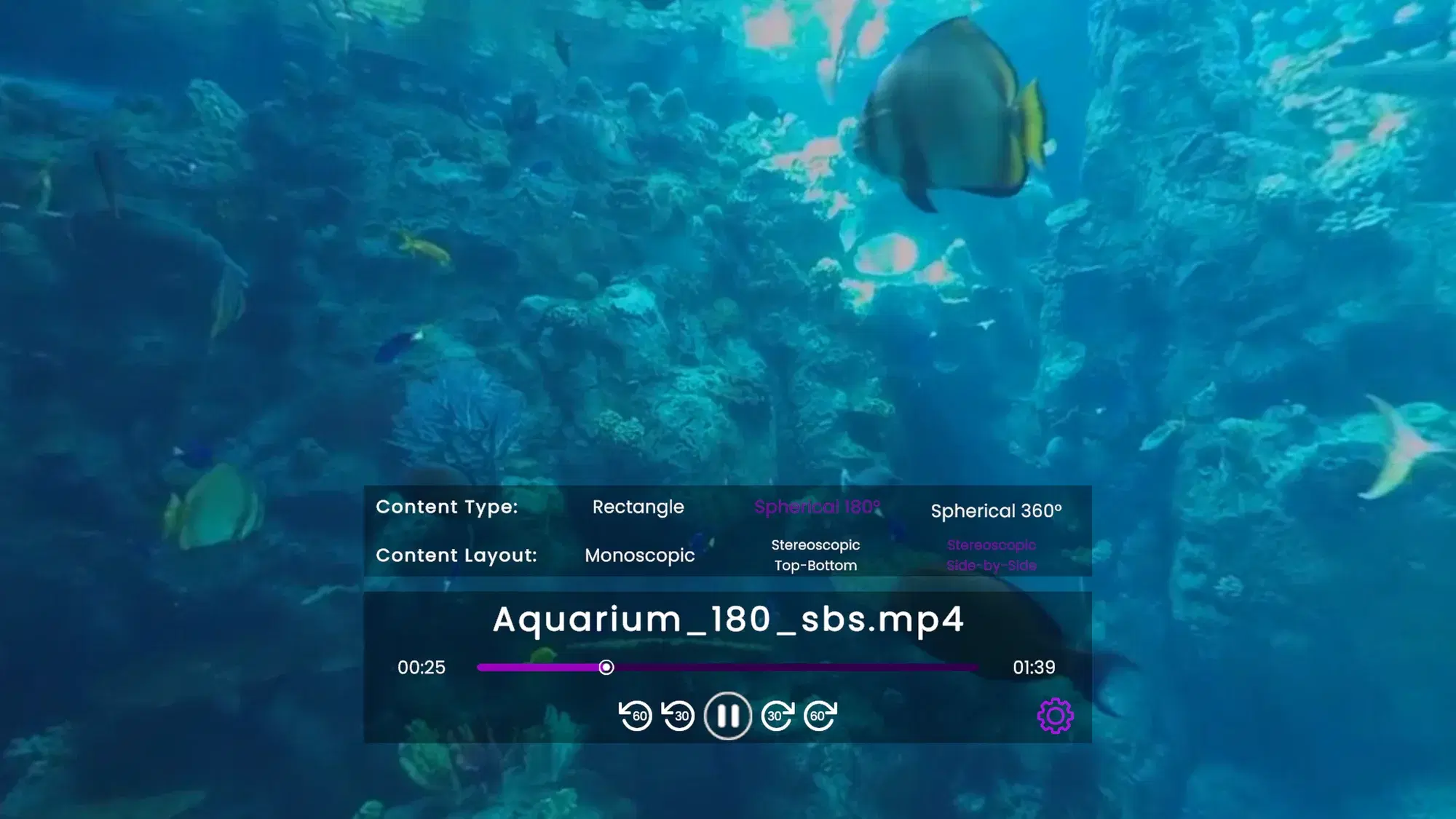
View of the media player settings' pop out submenu. - For example, while you have your drive inserted in your Windows machine, it will have the file path:
-
Plug the drive into your PS5, turn on your PS VR2 headset, open Rad TV and choose the VR version, then open Library, Sideloading. You can connect more than one drive; each appears in the Sideloading menu.
Known Issues
- Videos should not contain "sbs," "ou," or any of the other naming convention tags unless they are intended to let the player know which type of video it should try and render.
- If you are formatting your drive on macOS, you will need to enable Master Boot Record (MBR), otherwise, your videos may not show up.
- Sometimes formatting your drive on macOS can cause duplicate files on the application, this is a hidden metafile generated by macOS that ends up being recognized by the app. One of these is the actual video and can be played back where the other is not and will not load.
