Click here to watch a video tutorial.
It’s time to upload your first video!
- Click 'My Videos'
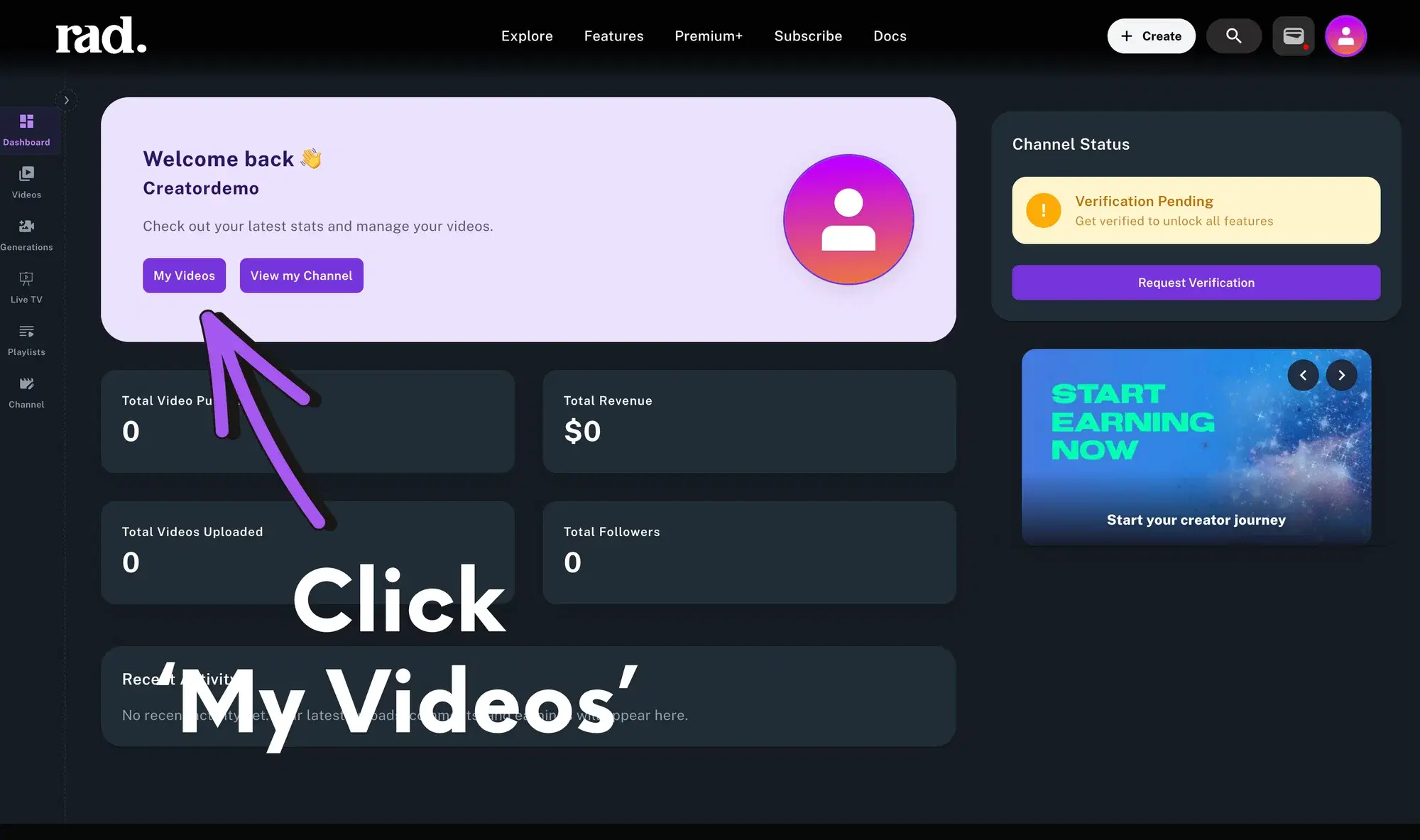
You will be taken to a page that looks like this
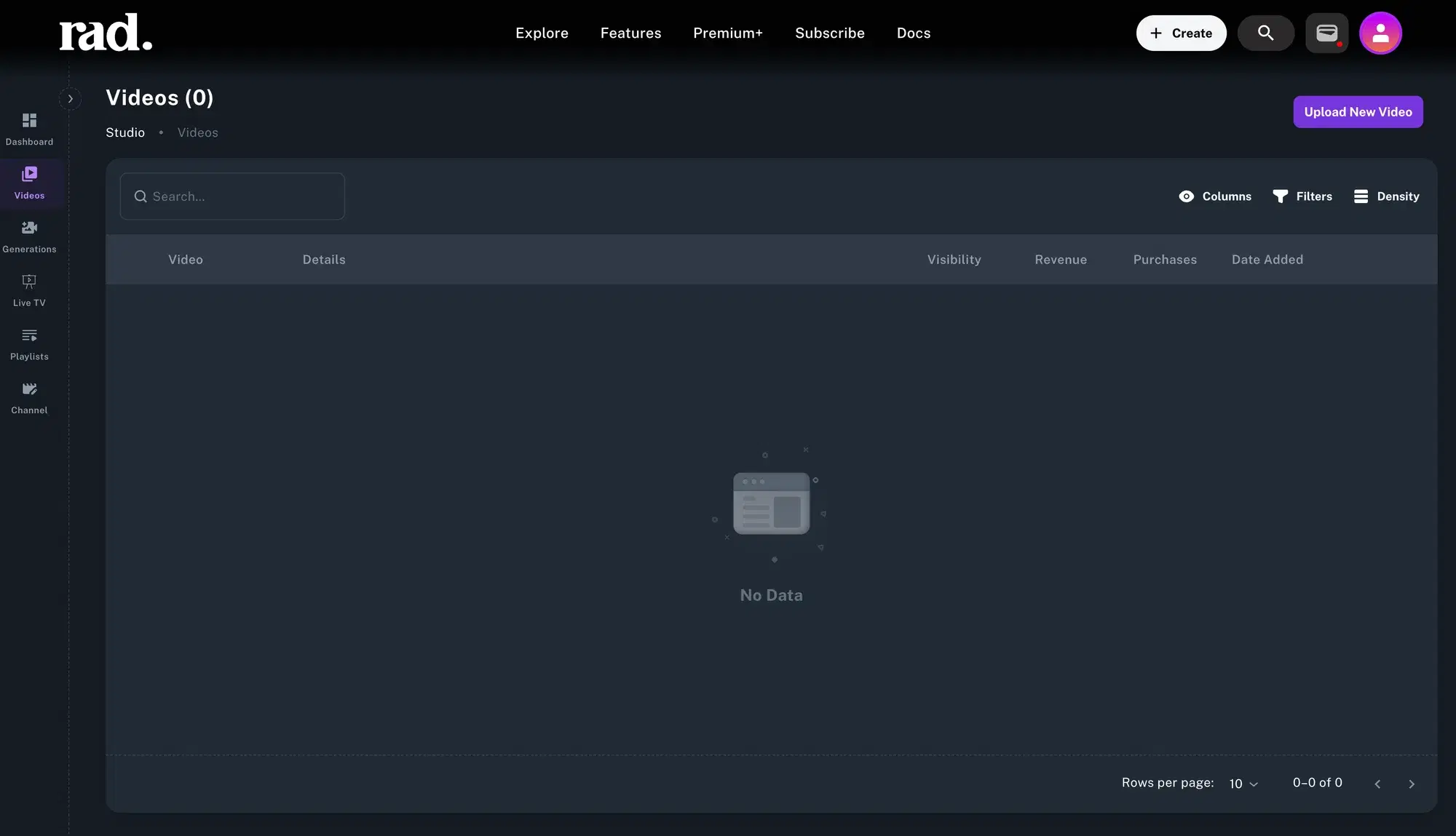
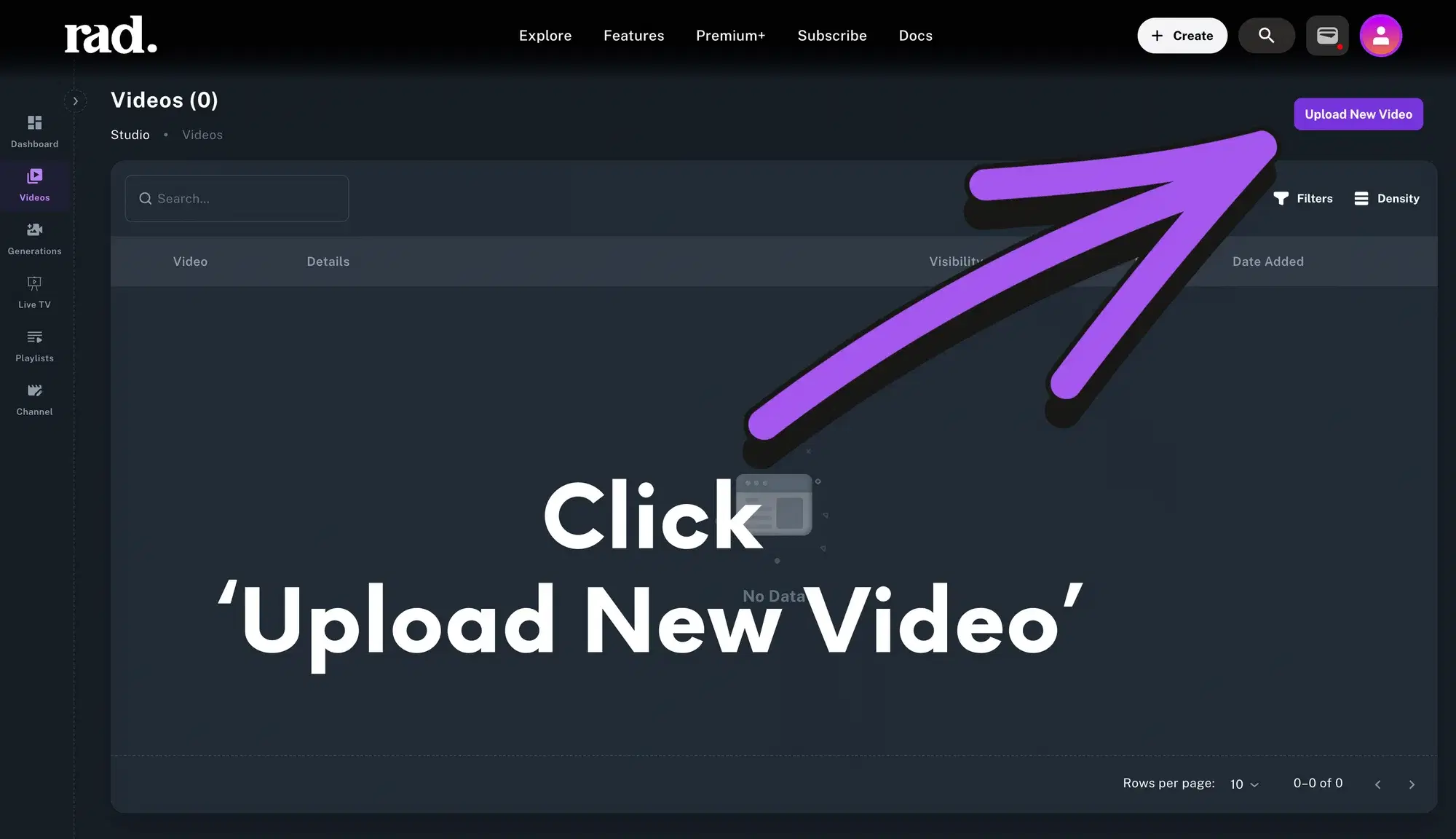
- Click 'Upload New Video' 👇
- Rad TV supports a wide range of video file types including WEBM, MP4, M4V, MOV, MKV, AVI, and MXF
- Landscape, Portrait, Square
- Video files must be less than 100GB in size
- Max resolution is 4K (3840 x 2160)
This layout selection screen will pop up 👇
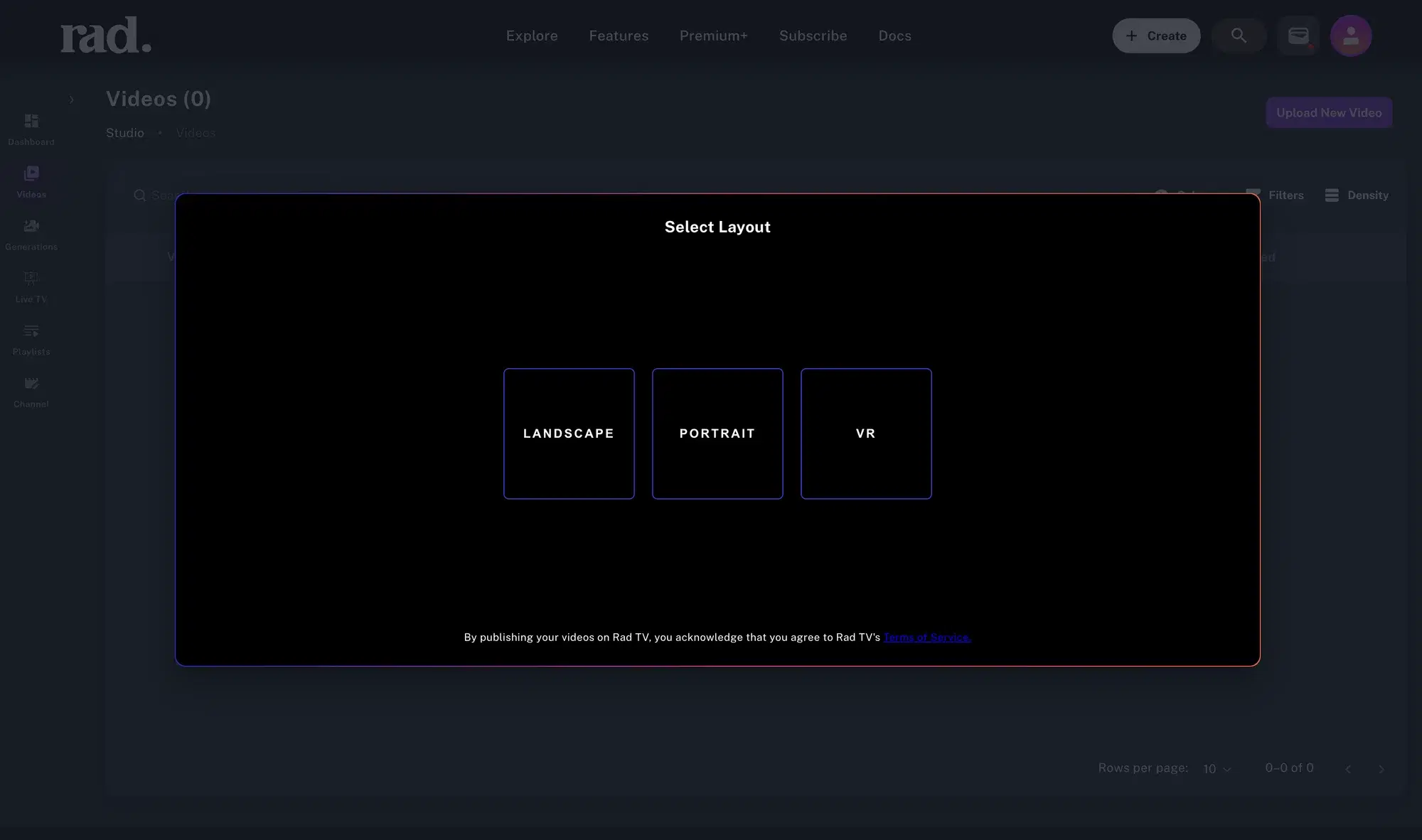
- Select the layout for the video(s) you will be uploading
Afeter you select your layout you will see this screen
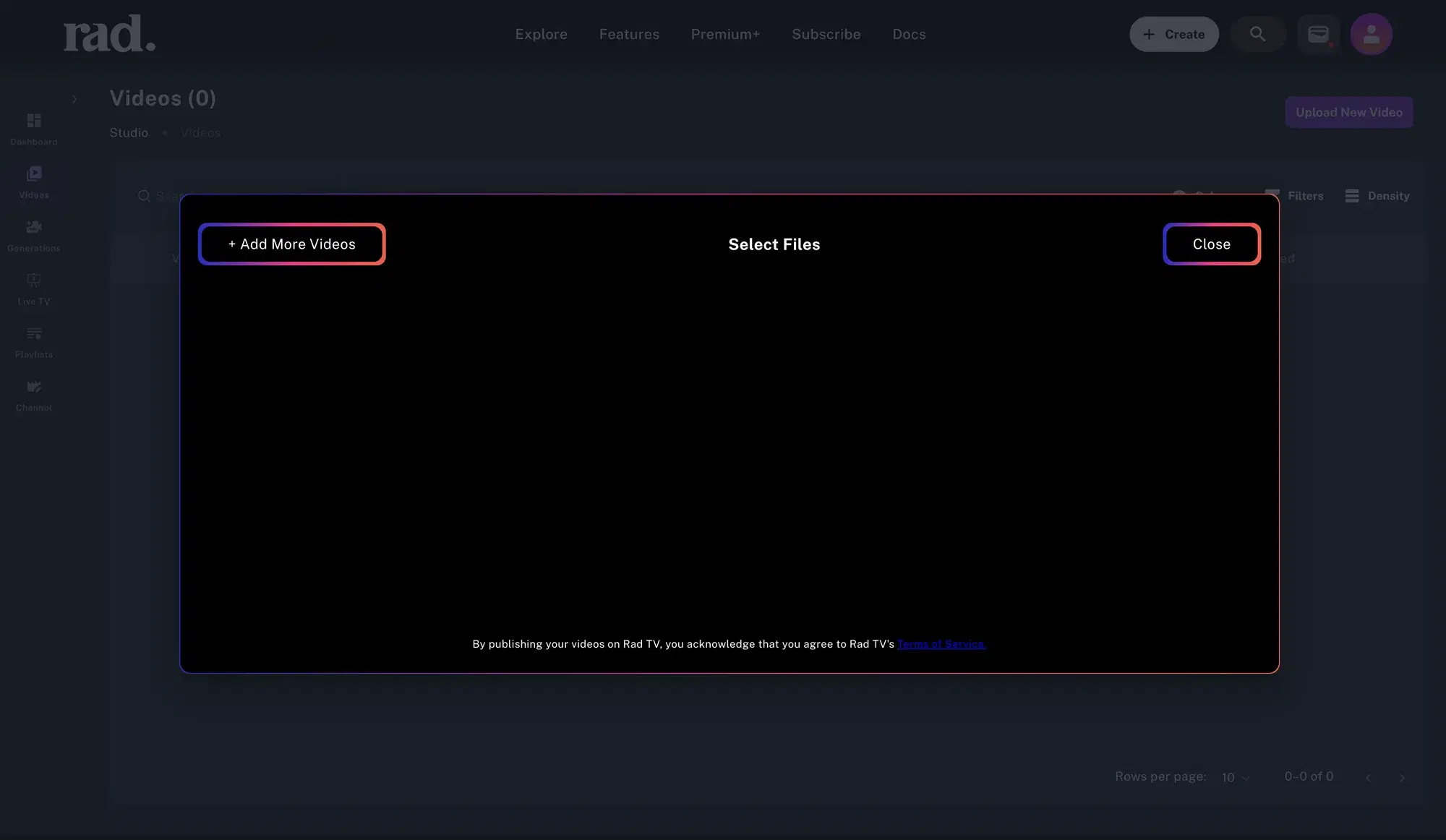
- Click the '+ Add More Videos' button at the top left and select the videos you want to upload to your channel (5 videos can be uploaded at once).
- Click 'Upload Files'
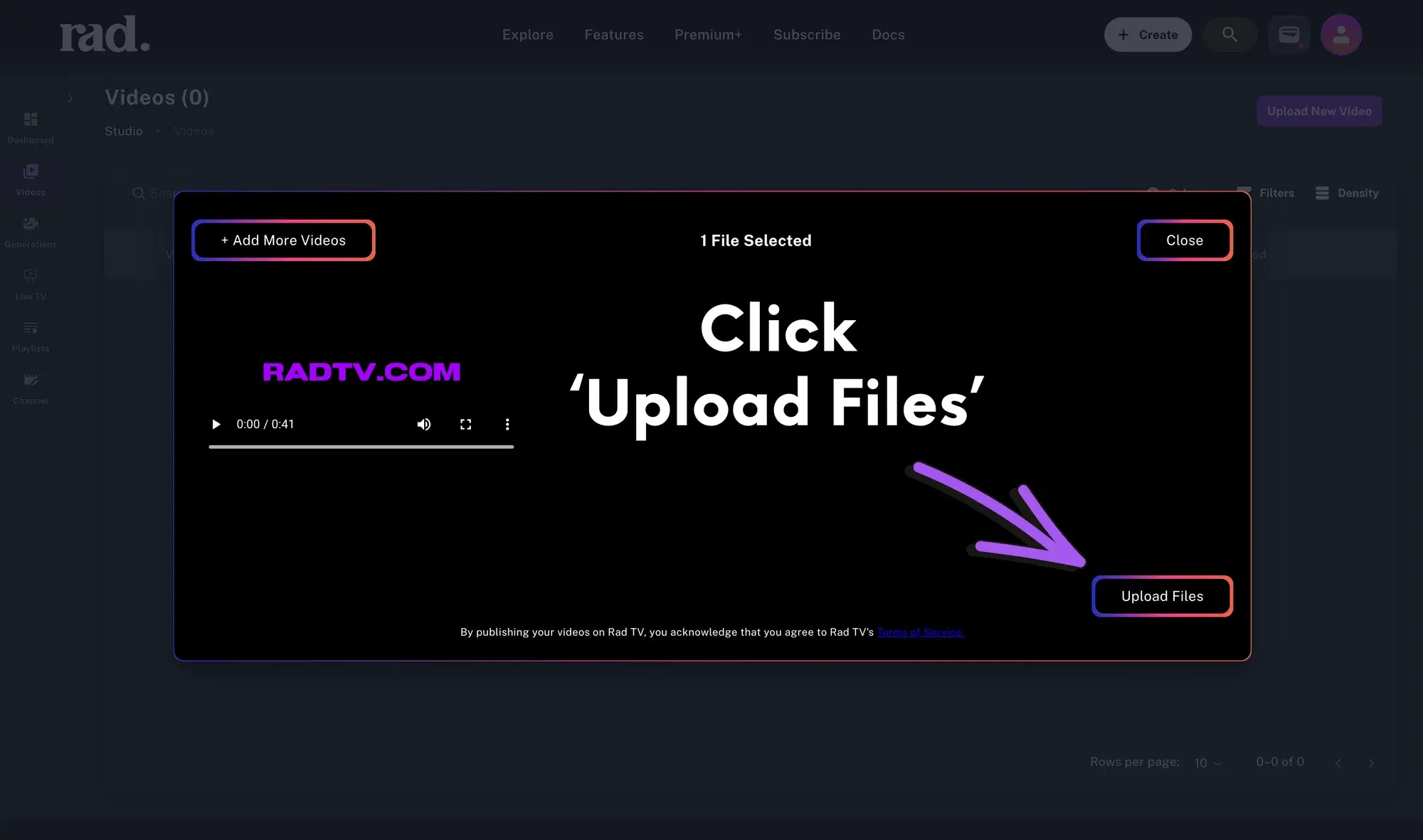
After clicking ‘Upload Files’ you will see a progress bar
Once the upload is complete you will be redirected to your 'My Videos' page where you can manage your content
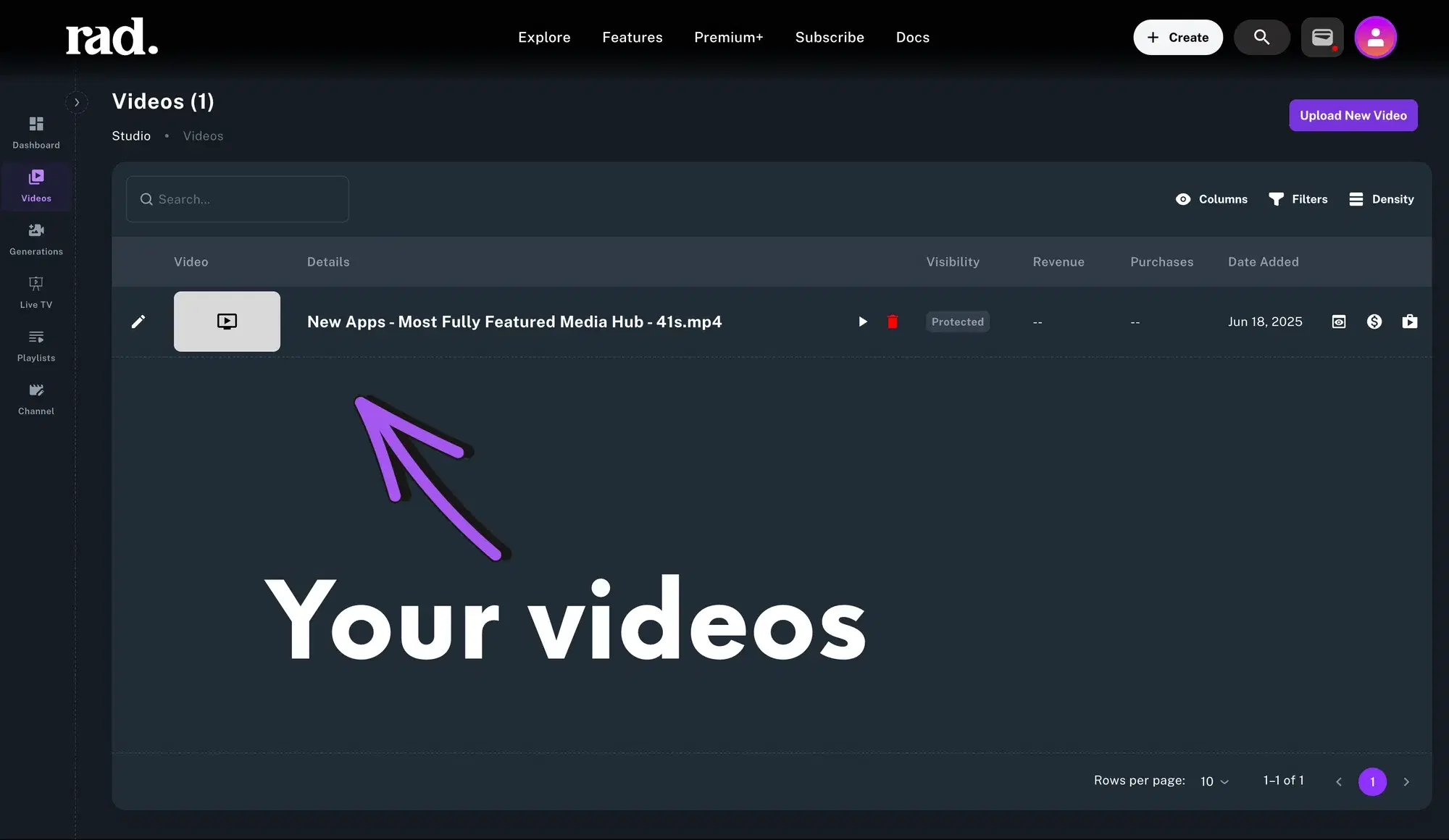
Now it’s time to set the metadata for your videos
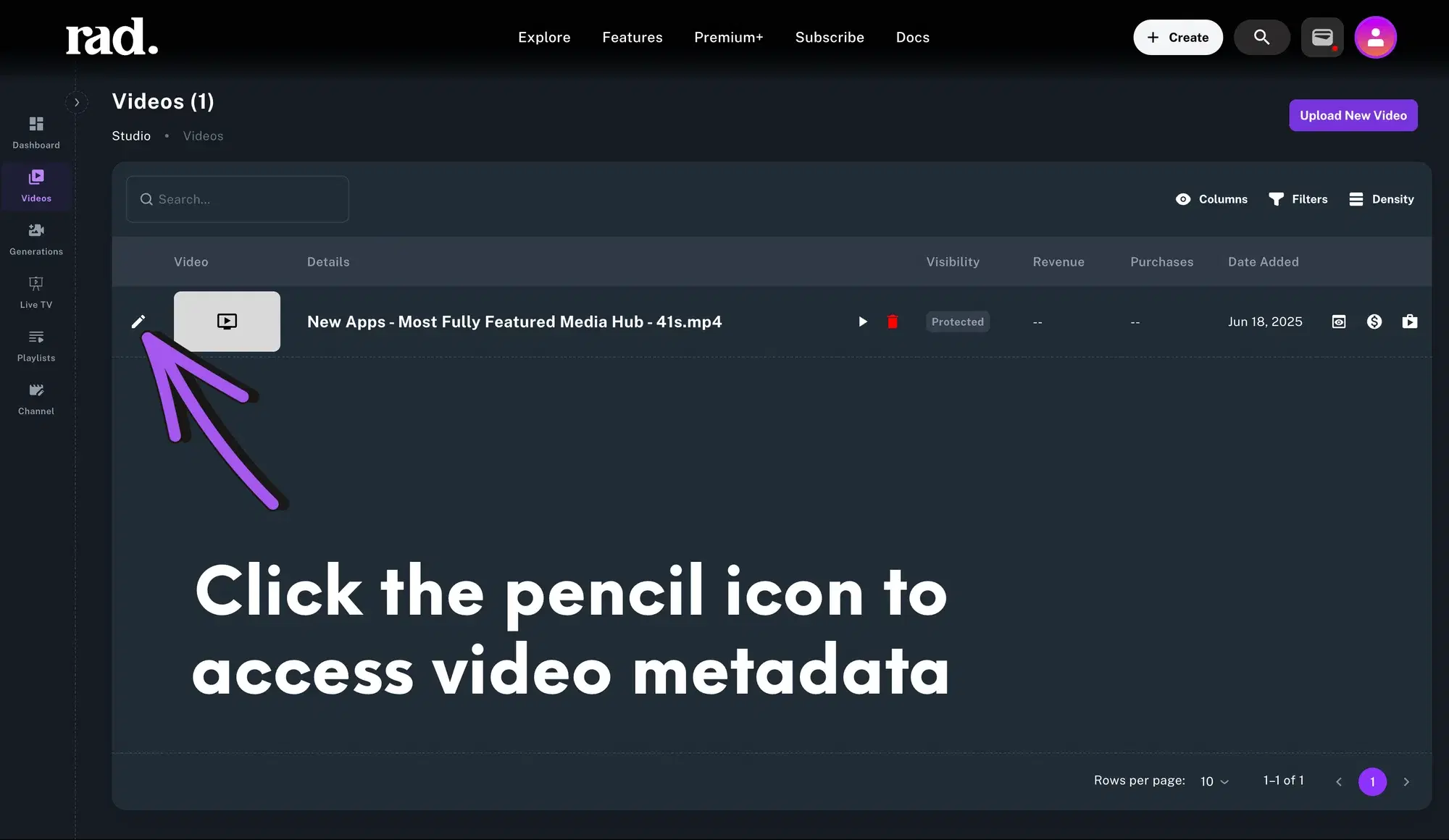
- To get started click the edit button on the video you want to edit metadata for
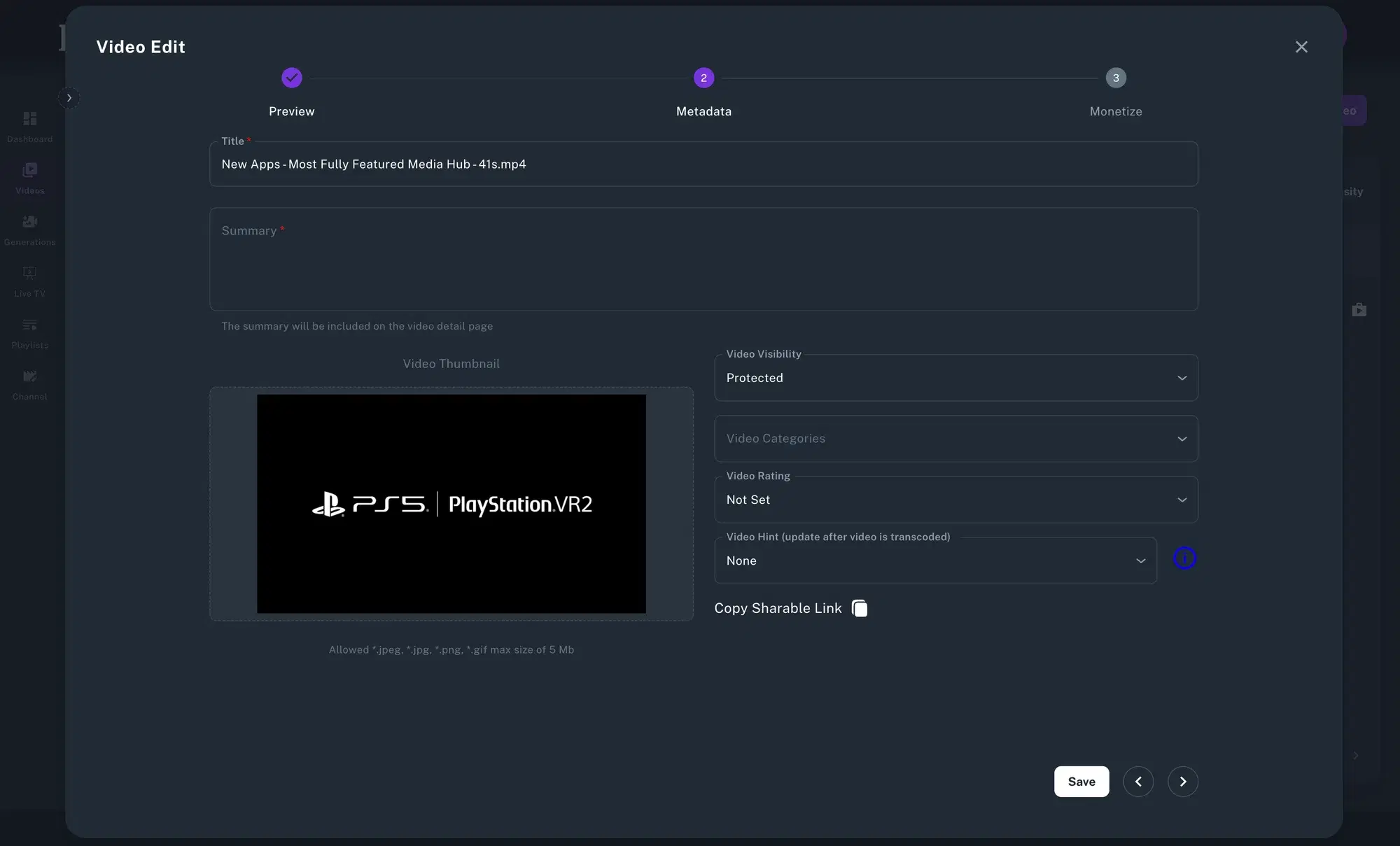
You will be taken to a page where you can edit metadata and upload a thumbnail for your video that looks like this
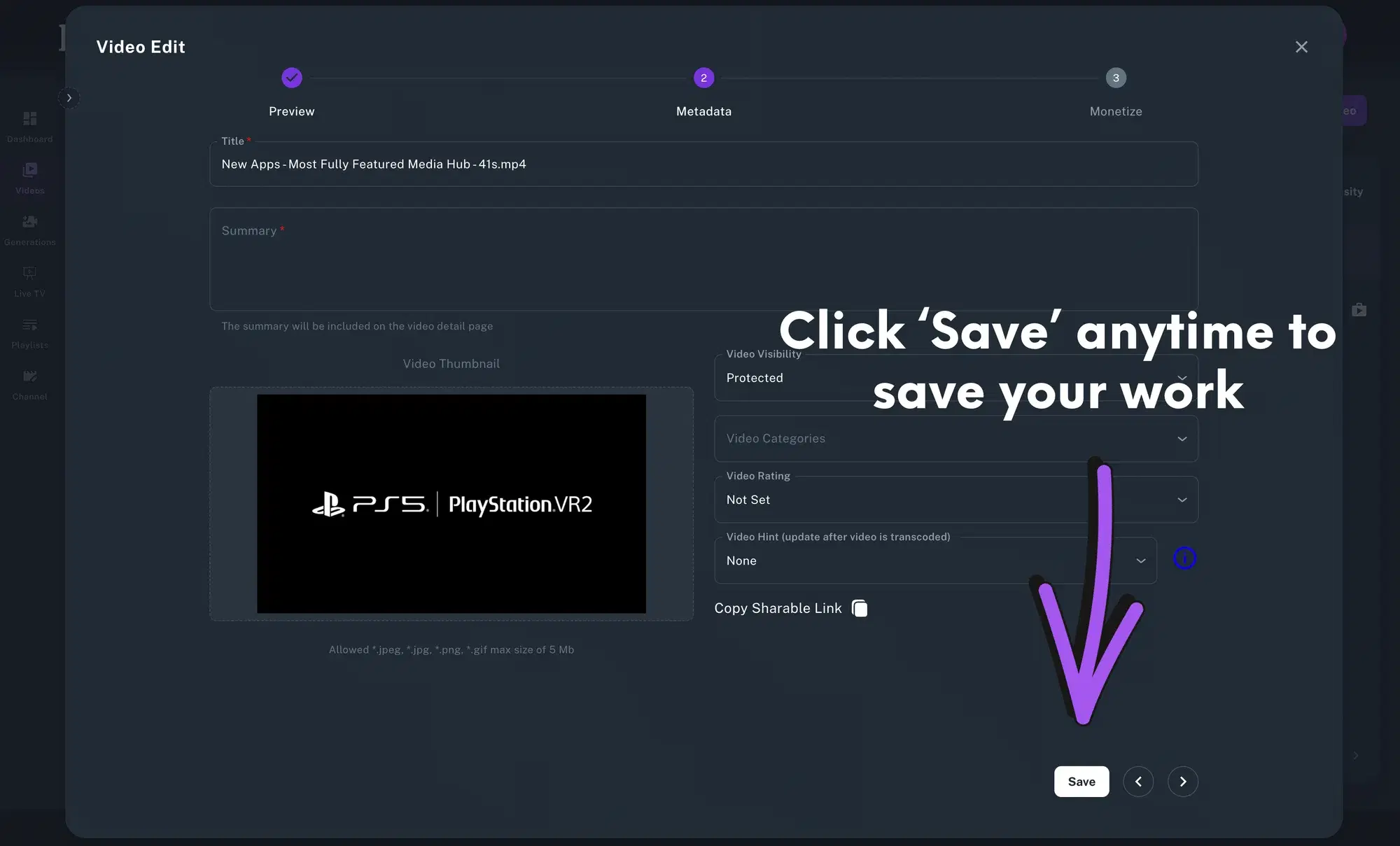
At any point you can hit the 'Save' button to save your progress.
- Set the title of your video and add a summary including any links
- Upload a thumbnail image that will be displayed everywhere your video is shown on Rad TV
- This image needs to be 1920x1080 (16:9)
- JPG, PNG, GIF, or SVG
- Max file size is 5MB
- If your video is featured in our main carousel you might want to update your thumbnail image using this template.
- This image needs to be 1920x1080 (16:9)
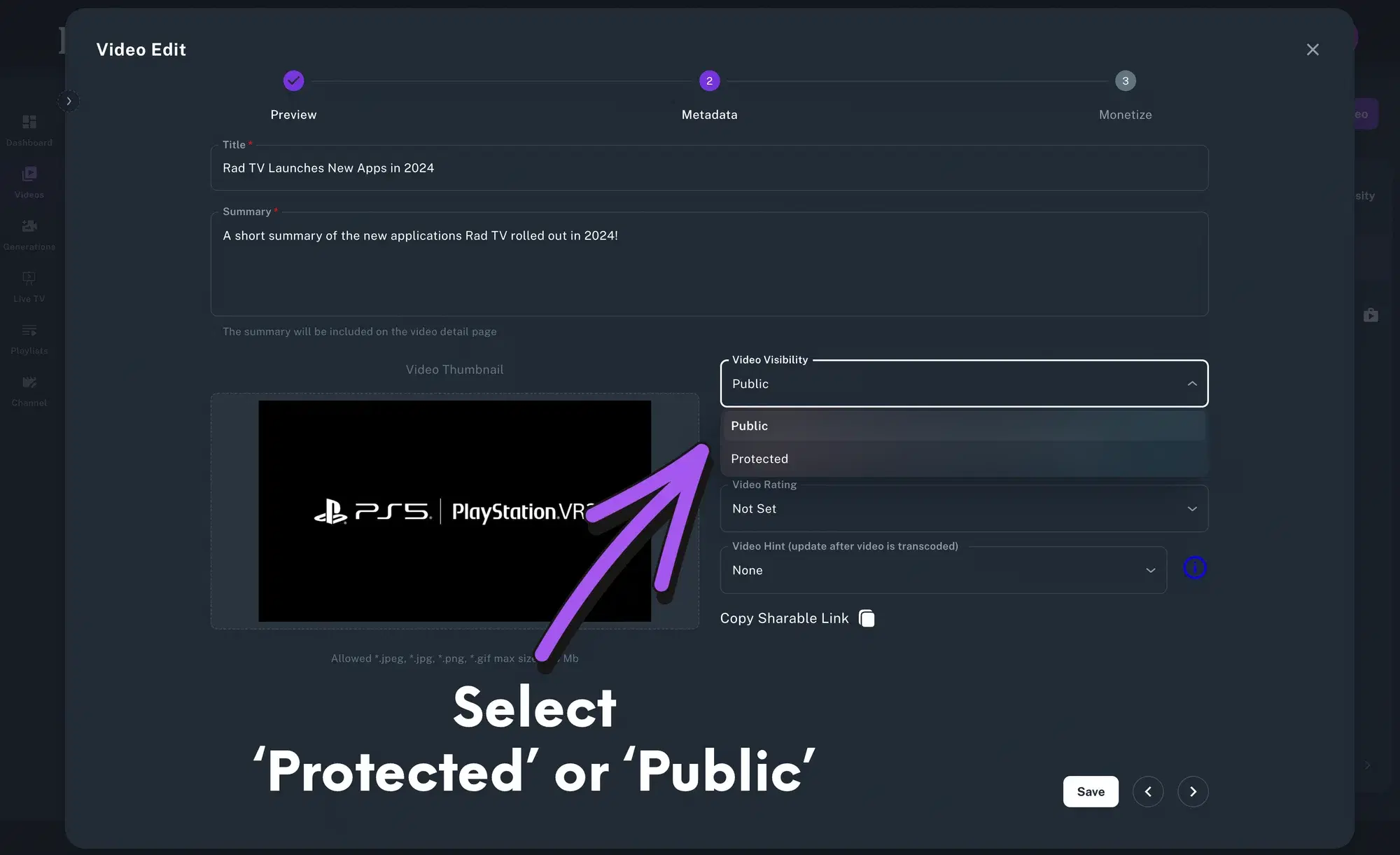
- Set Video Visibility
- All videos start off ‘Protected’ which means only you can see them
- If you want your video to be publicly available click the 'Video Visibility' dropdown box and select 'Public'
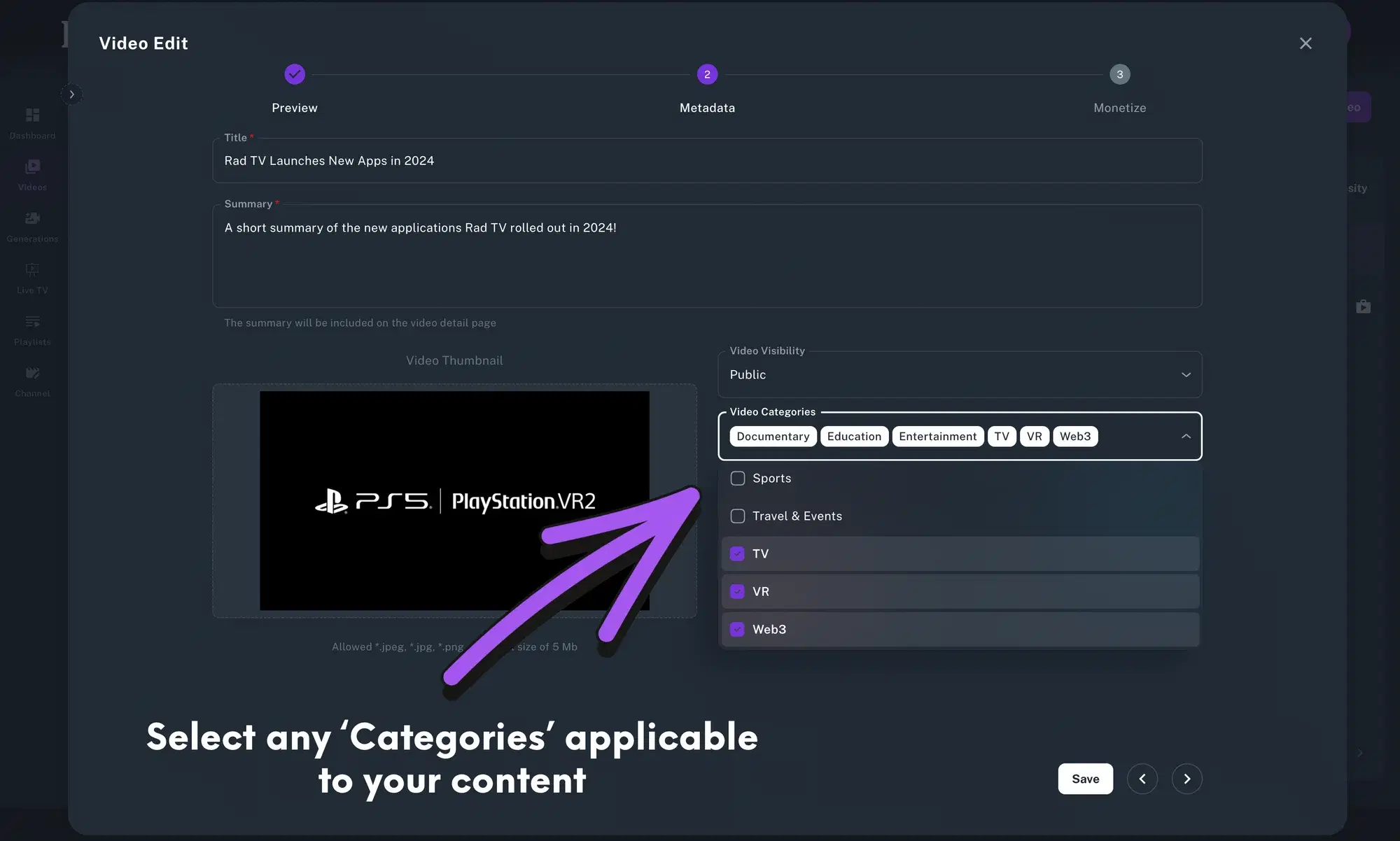
Choose Video Categories: Select a few categories your video belongs in. This gives your video more visibility and better discoverability across Rad TV apps.
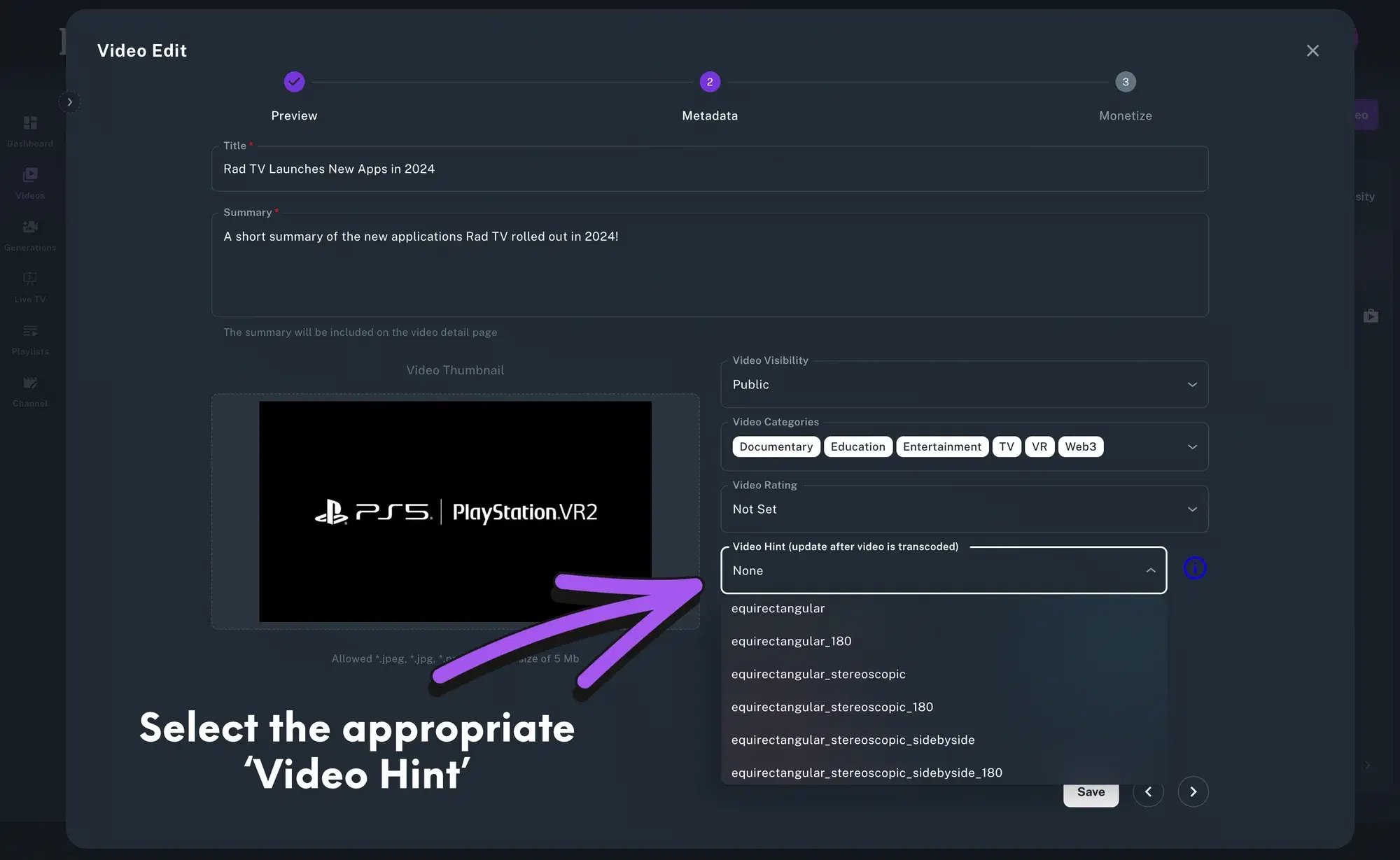
Rad TV supports many resolutions and content types. If you are uploading VR, 360°, 180°, or 3D content you will need to select a 'Video Hint' in order to tell our system how to display the video. You can change this anytime. If you aren't sure which to select, trial and error will only take a few clicks.
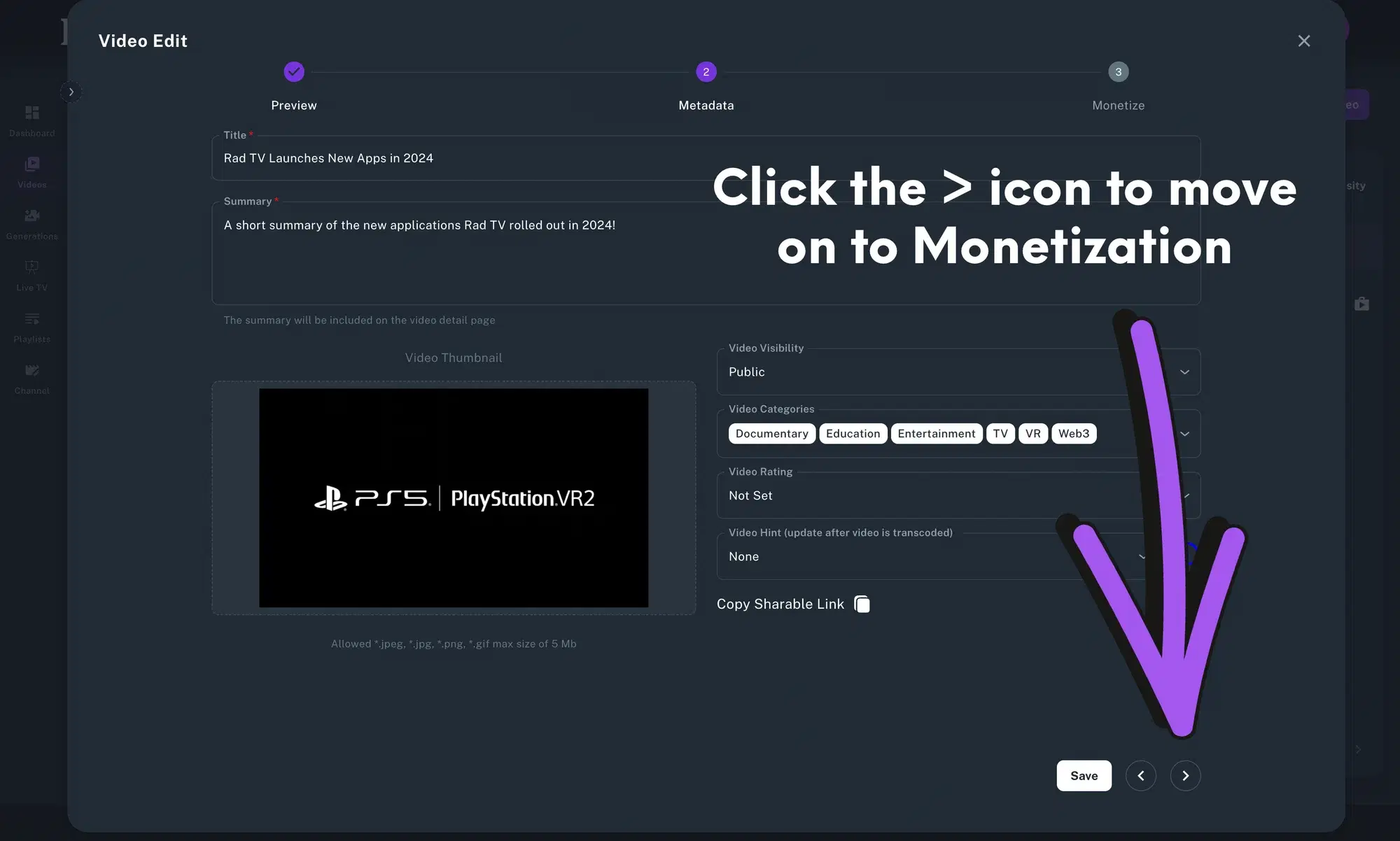
Once you have entered all metadata click the '>' button at the bottom of the form to move on to monetization
- Monetization: After you click the ‘>’ button you will be taken to the monetization page where you can select how/if you would like to monetize this piece of content. If you want to make your video available for anyone to watch click the ‘Publish Video’ button.
After you click the publish video button you will be taken back to your 'My Videos' page
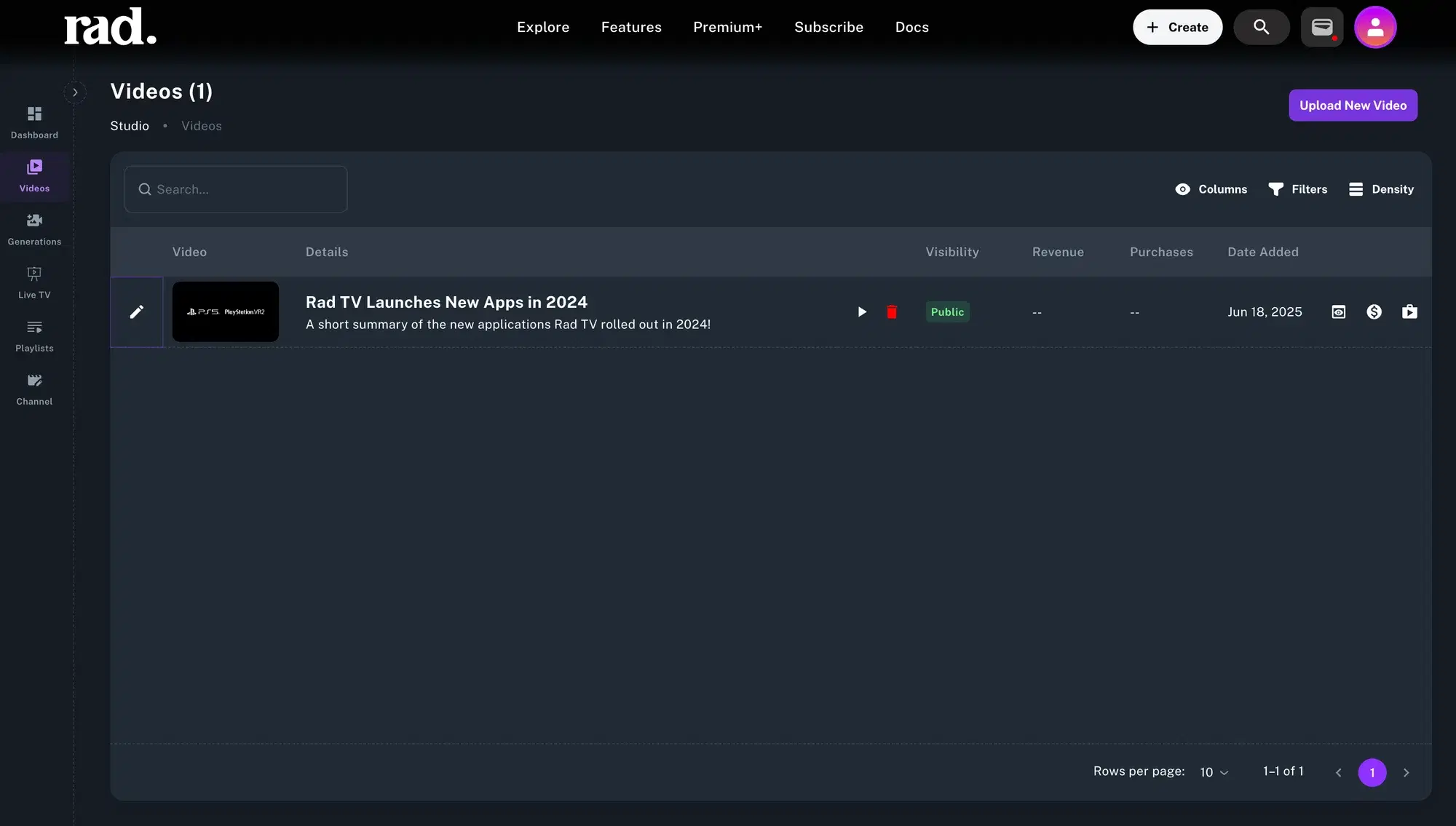
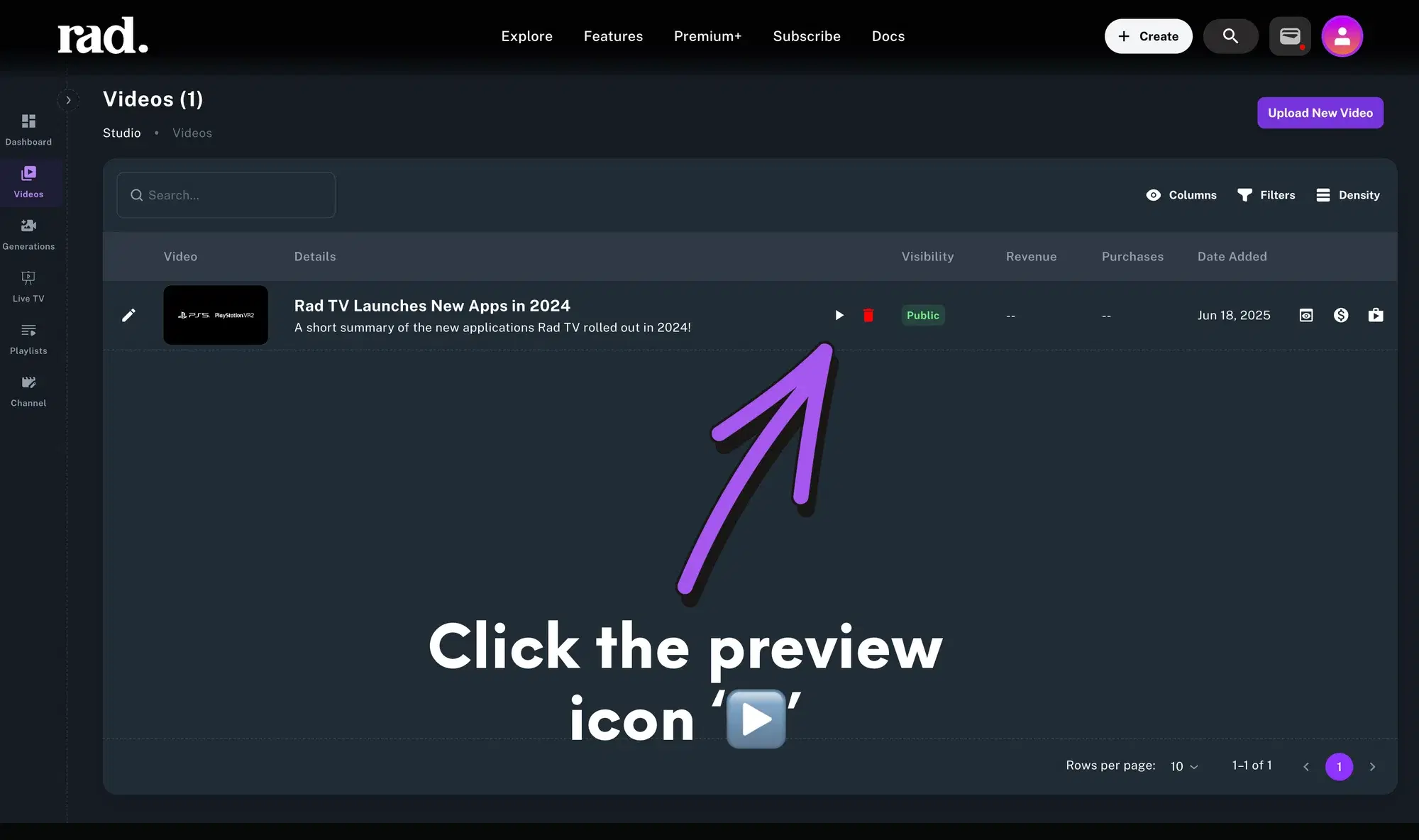
Click the ‘Preview’ button to see what your video page looks like and to test playback
You will be redirected to the content on Rad TV
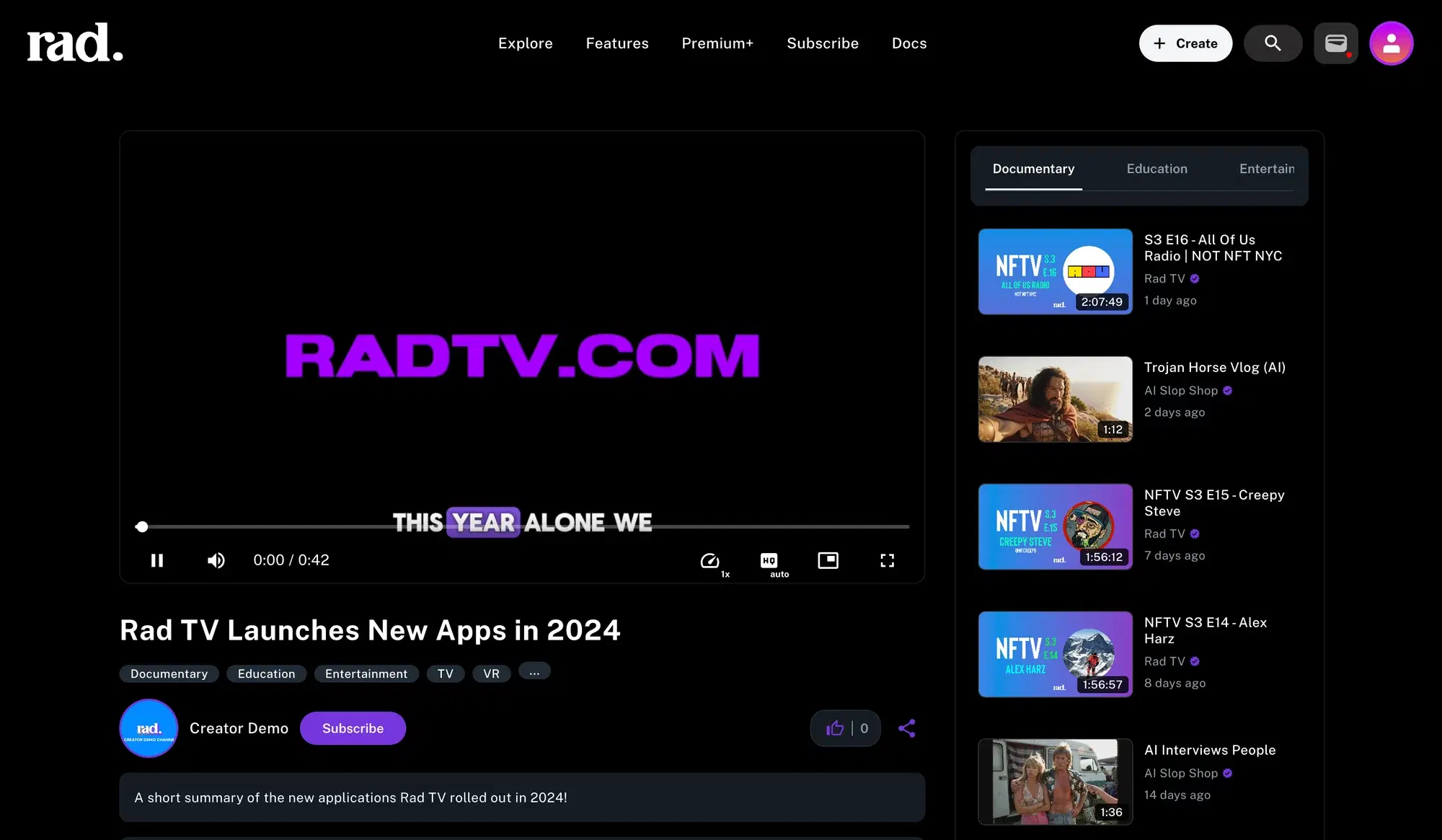
Great work! You have uploaded a video and are ready to share it with the world!
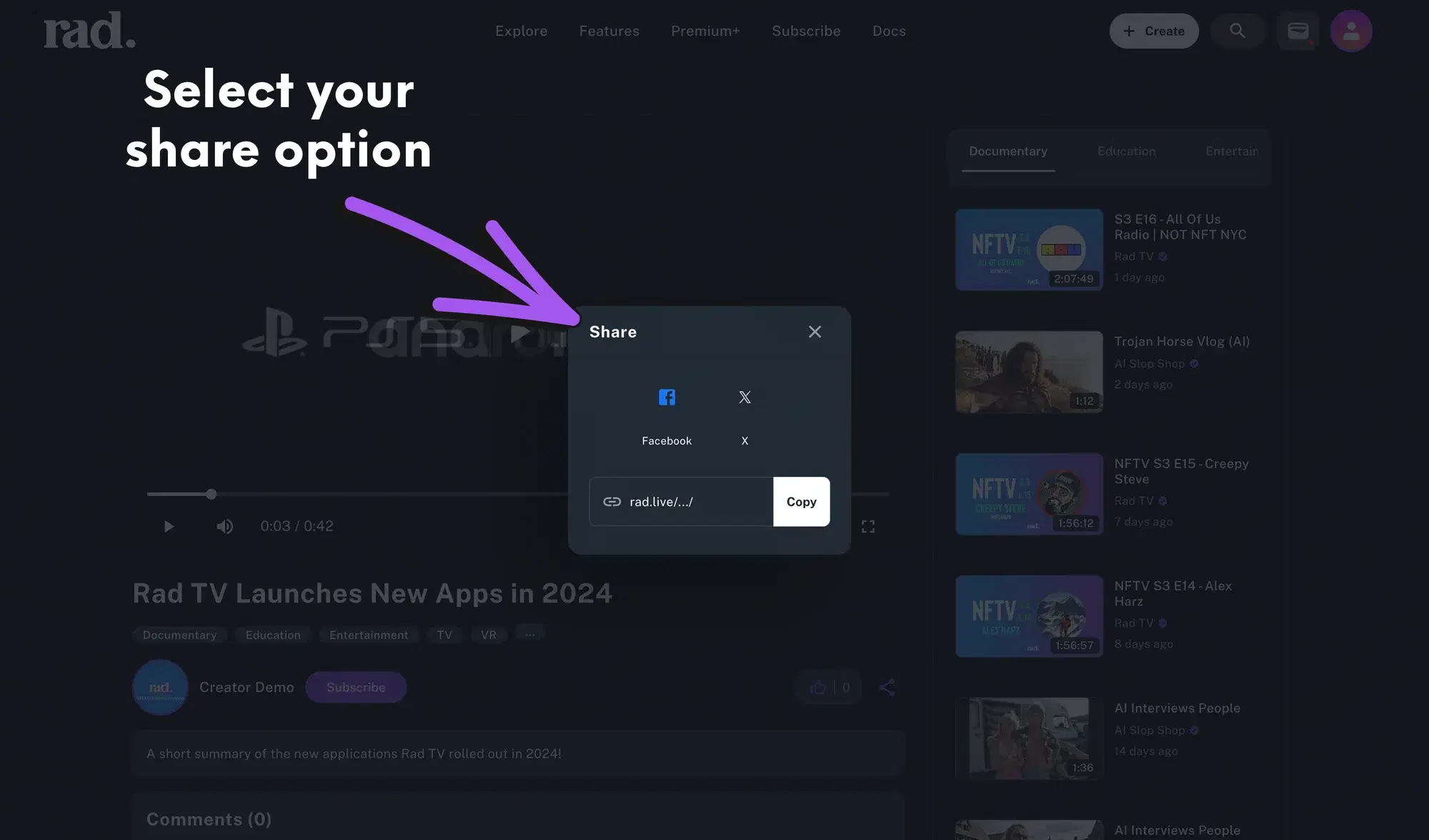
- Click the share button to either copy the direct link to your video’s page or share your video to 𝕏 or facebook
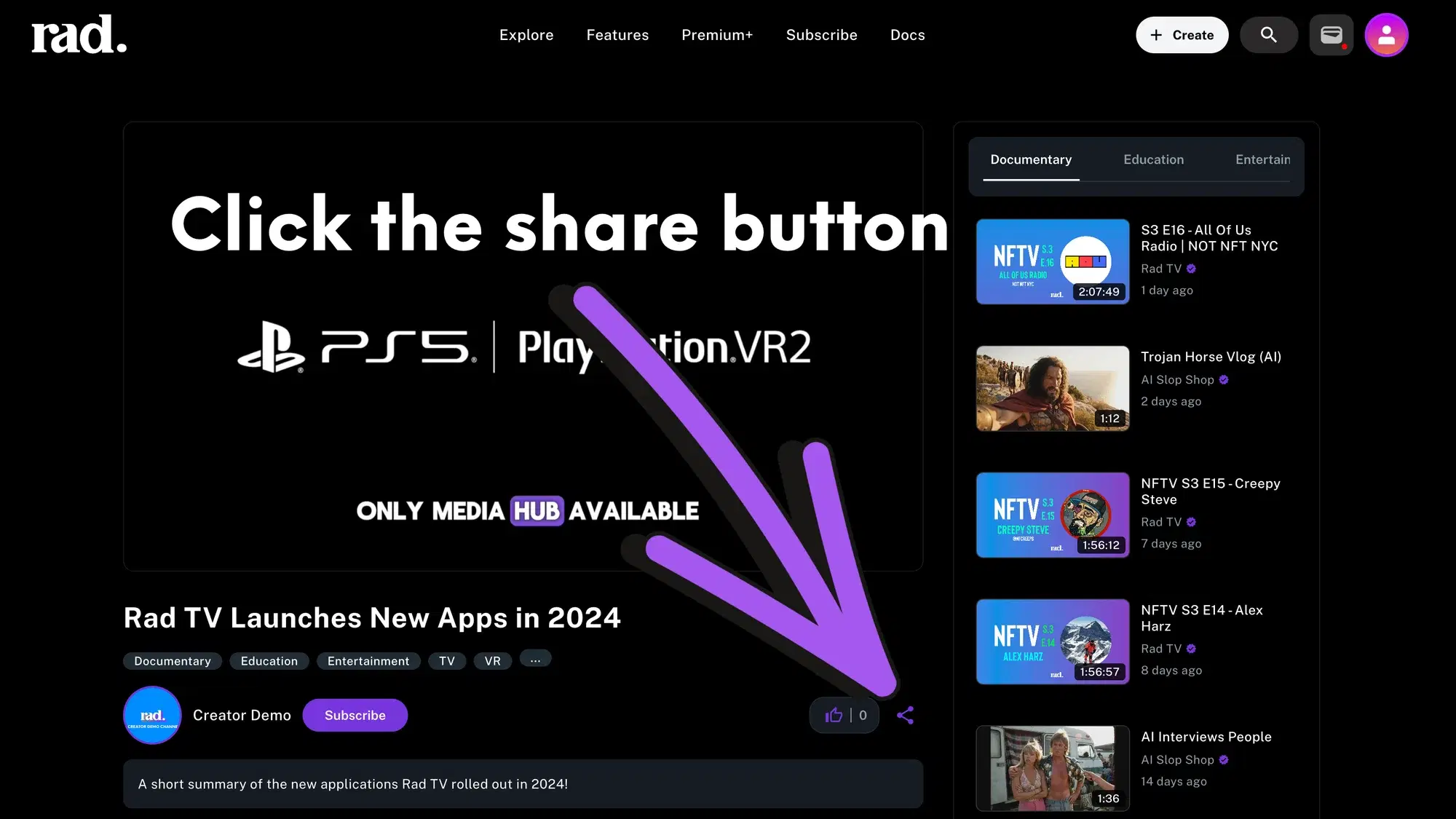
- Select how you would like to share your video page