
Why the Rad TV profile
Over DLNA, Jellyfin reports MP4 files as MOV, which Rad TV does not play. The profile corrects that, so your MP4 files show up and play.
Jellyfin has no official app for PS5 or PS4. If you have a PS VR2 headset, you can watch your Jellyfin library on PS5 with Rad TV: install Jellyfin's official DLNA plugin, add Rad TV's DLNA profile, then open Library, DLNA/UPnP in the Rad TV VR app.
What you need
In Jellyfin, go to Dashboard, Plugins, Catalog and install the official DLNA plugin.
Click Restart on the Dashboard so the plugin loads.
Download the Jellyfin DLNA profile for Rad TV from the DLNA/UPnP page of the Rad TV docs.
Copy the profile into the plugin's profiles folder. On Windows it is usually C:\Users\{you}\AppData\Local\jellyfin\plugins\DLNA_{version}\profiles. The Dashboard lists your exact paths.
Restart Jellyfin once more so it loads the profile.
Open the Rad TV VR version on your PS5, sign in with Premium, and go to Library, DLNA/UPnP. Your Jellyfin server appears there.
Over DLNA, Jellyfin reports MP4 files as MOV, which Rad TV does not play. The profile corrects that, so your MP4 files show up and play.
A new major version of the DLNA plugin starts with a fresh profiles folder. Copy the Rad TV profile in again and restart.
Lower Client Discovery Interval in the DLNA plugin settings, keep the PS5 on the same network as the server, and check Jellyfin's logs for a blocked DLNA port.
Anyone on your home network can see a DLNA server. Keep UPnP turned off on your router, and allow only your PS5's IP address in Jellyfin if you share your network.
MP4 or MPEG-2 TS with H.264 or H.265 (HEVC), and WebM with VP9. AAC audio, up to 4 channels.
Up to 8192x4352, up to 50 Mbps, and up to 10-bit color. Very high frame rates at the top resolution can stutter.
Flat, 180 degree and 360 degree video, each in 2D or in 3D as side-by-side or top-bottom.
Rad TV does not play MKV (Matroska), AV1 or MOV files, or text subtitles such as SRT or ASS. Convert MKV files to MP4 first.
Sideloading, media servers and RSS feeds come with Premium, Premium+ and Stream Pass.
No. Jellyfin has no official PS5 or PS4 client. With a PS VR2, Rad TV can play your Jellyfin library on PS5 through Jellyfin's DLNA plugin.
Not with Rad TV. Media servers play in the VR version of the app, which needs a PS VR2 headset. The standard PS5 version does not connect to Jellyfin.
No. Rad TV finds your server over DLNA on your home network, so there is no Jellyfin login. That is also why only devices on your network can reach it.
No. DLNA works on your local network only, so the PS5 and the Jellyfin server need to be on the same home network.
Rad TV plays MP4 and MPEG-2 TS (H.264, H.265) and WebM (VP9). MKV files are not supported yet, so convert them to MP4. If MP4 files show as unsupported, install the Rad TV DLNA profile.
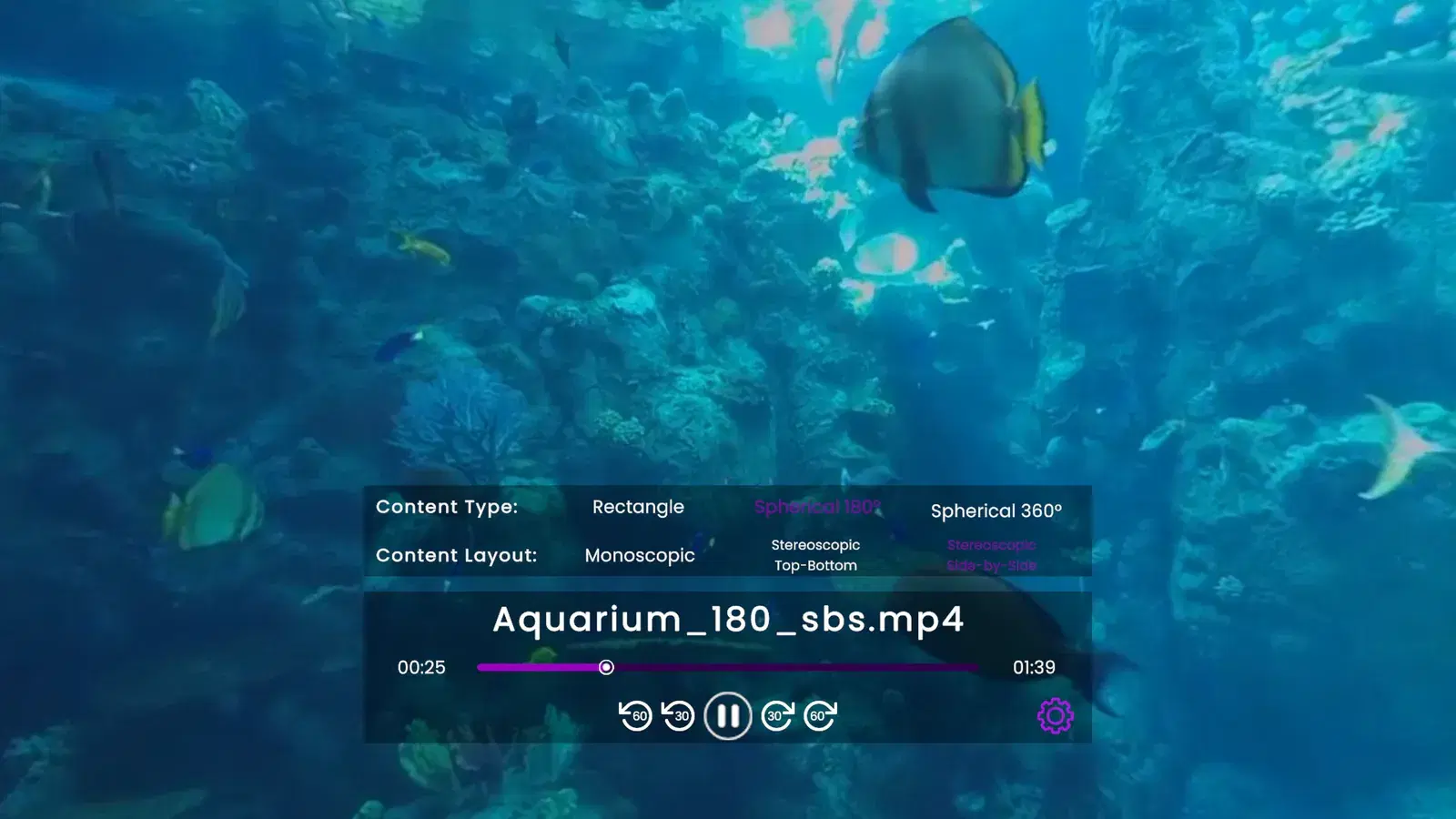
Yes. Name files with tags such as _360 or _180_sbs, or set the content type and layout in Rad TV's player settings, and they play as VR or 3D in the headset.
